In This Town Controls & Menus
Master movement, the Gear code UI, and device-specific tips before the next town rule hits.
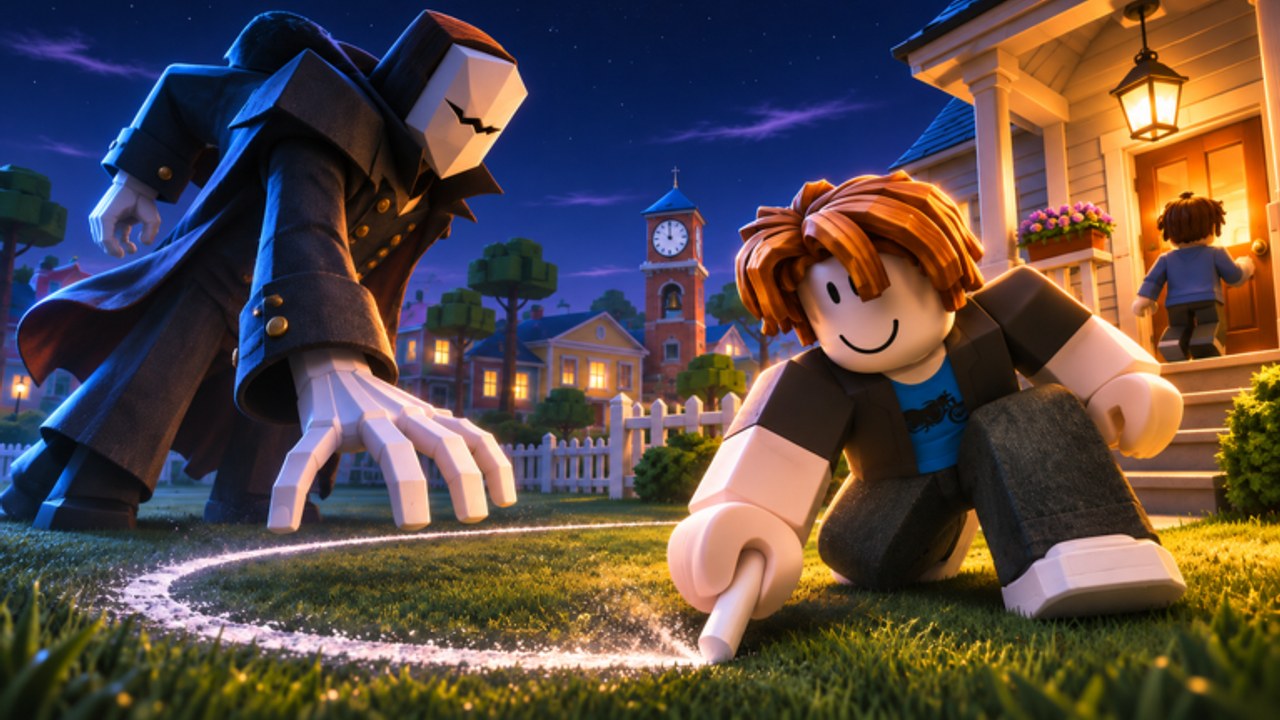
Fumbling the Gear menu while Stay in the light is active is a classic In This Town mistake. This Controls guide covers movement basics, camera habits, the exact code redemption UI used by Global Goose Games, chat callouts, and mobile versus desktop differences so your thumbs never betray a winning round. Read it once, then return to Getting Started or How to Survive for tactics.
Core movement (Roblox defaults)
In This Town uses standard Roblox character controls unless a specific event remaps interactions:
| Action | Desktop | Mobile |
|---|---|---|
| Move | WASD | Virtual joystick |
| Jump / climb intent | Space | Jump button |
| Camera | Mouse | Drag / pinch |
| Chat | / or chat UI | Chat tap |
| Shift lock (if enabled) | Shift | Settings dependent |
You do not need fancy keybinds to succeed - you need reliable jumps for Keep off the ground, stable camera for judging light borders, and the discipline to stop moving when Hold on tight or Stay together demands stillness.
Camera habits that save runs
- Tilt up when scanning for perches and lamps before a rule lands.
- Keep the character centered so you can see shadow lines at your feet during Stay in the light.
- On Hold on tight, angle to confirm your avatar still grips the object.
- Avoid extreme first-person novelty angles that hide approaching teammates during Stay together.
If camera sensitivity feels slippery on mouse, lower it in Roblox settings before a badge session aimed at 10-50 Wins (Players Hub).
Gear menu and code redemption
Promo codes are claimed in-experience:
- Launch the official In This Town [NEW EVENTS] place.
- Ensure you already joined the Global Goose Games community - codes fail without it.
- Click the Gear icon (commonly top-right).
- Locate the ENTER CODE field.
- Type the code exactly - primary active example:
UPDATE. - Press REDEEM and wait for confirmation / coin update (500 Coins for UPDATE).
Full troubleshooting lives on the Codes Hub. Older strings like 30LIKES may be expired; do not spam them mid-round.
Why you should never redeem mid-rule
Opening Gear during a live rule drops your attention. Finish the round, then redeem. Coins do not pause the town’s commandments.
Chat as a control surface
Because voice chat is listed as unsupported on the experience page, text is a survival tool:
LIGHT/UP/CLUMP/HOLD- instant rule calls.WAIT- stop the blob during Stay together.HERE- mark a perch or lamp cluster.
Bind your brain to open chat the moment the banner appears. Callers carry public lobbies; see co-op roles on Players.
Mobile-specific tips
- Increase jump button opacity if you miss climbs during Keep off the ground.
- Use a grip case; sweaty thumbs slide off the joystick when panicking toward light.
- Auto-rotate lock can help keep lamp posts oriented consistently.
- Do not multitask between rounds if you are grinding badges - banner recognition needs focus.
- If the Gear icon is tiny on your resolution, practice opening it in a safe lobby before serious play.
Desktop-specific tips
- Space spam is worse than one clean timed jump onto a prop.
- Keep chat unbound from keys you use for movement macros.
- Fullscreen reduces accidental desktop alt-tabs that soft-kill attention mid-rule.
- If you stream, hide the code field when typing - never flash unreleased private codes (official ones are meant to be shared).
Accessibility and comfort
Lower graphic settings if shadows become unreadable mush; surviving Stay in the light requires seeing brightness differences. Disable overly bright crosshair overlays from third-party injectors - and skip injectors entirely (Scripts Hub). Roblox’s built-in settings are enough.
Pre-round control checklist
- Joystick / WASD responsive
- Jump tested once
- Camera sensitivity comfortable
- Chat reachable in under one second
- Gear menu location memorized
- Community joined for codes
- No extra menus open when the banner drops
Connecting controls to rules
| Rule | Control focus |
|---|---|
| Stay in the light | Camera on shadow borders; disciplined movement |
| Keep off the ground | Jump timing; early climb |
| Stay together | Chat calls; stop-start movement matching Anchor |
| Hold on tight | Approach, interact/grab, then minimal strafing |
Deep tactics: Rules Explained. Difficulty: Tier List. Layout impact: Maps and Events. Patch UI surprises: Updates.
Common UI failures
- Redeeming before joining Global Goose Games.
- Wrong case on
UPDATE. - Opening shop GUIs that block jump input.
- Emote wheel covering the jump button on mobile.
- Lag spikes interpreted as “controls broke” - hop servers if input delay is extreme.
Practice drill
Spend five minutes in a low-stakes lobby: open Gear, close Gear, type a callout, jump on three different props, walk a lit path without touching shadow. That micro-routine prevents the first-round fumbles new players make after watching chaotic live streams.
Controls will not earn badges alone, but bad controls will steal them. Lock the basics, claim your codes, and put attention back on the town rule where it belongs.
Frequently Asked Questions
Quick answers about codes, rules, and surviving In This Town.
Where is the code menu in In This Town?
Click the Gear icon, use the ENTER CODE box, then press REDEEM. Join Global Goose Games before trying UPDATE.
What are the basic movement keys?
Desktop uses WASD plus Space to jump. Mobile uses the virtual joystick and on-screen jump button.
Should I open the Gear menu during a round?
No. Finish surviving the town rule first. Redeem codes between rounds so you do not lose focus.
How do I call rules without voice chat?
Use short text macros like LIGHT, UP, CLUMP, or HOLD as soon as the banner appears.
Any mobile tip for Keep off the ground?
Enlarge or clarify the jump button and practice clean single jumps onto props instead of panicking.